
Write a support request
A request that says what you were doing, what you expected and what happened gets solved with the first reply. This guide says what to put in the field and what to attach.
Before you start
Section titled “Before you start”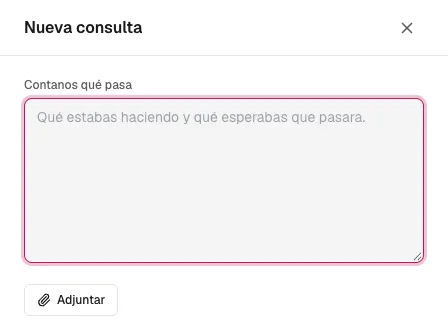
-
Open Support from the screen where it happened. Without leaving the screen where you saw the problem, tap the life ring in the top bar (on a phone, Support in your account menu). Your list of requests opens, and the team sees which screen you opened it from.
-
Tap New request. It is at the top right of the list. A panel opens with a single field, Tell us what is happening: everything goes there, no subject or category.
-
Start with what happened, in order. What you were doing (the screen and the button), what you expected to happen and what happened instead. If a red notice appeared, copy it as is into the text; if it has “Reference:” and a code, copy the code too: with it the team locates your case without asking.
-
Continue with how to repeat it. The steps one by one and the concrete item: the contact, the quote or the campaign where it happens. If it happens only sometimes, since when and whether it happens to someone else on the team. It goes in the same text, below the rest.
-
Attach what shows it. Tap Attach, or paste the screenshot straight into the field. A screenshot, the file that could not be uploaded or the PDF that came out wrong all work: up to 5 files of up to 10 MB each, as PNG, JPG, WebP, PDF or text.
-
Send. Send becomes available once there is text. The request shows up in the Support list with the status Received.