
Turn on the AI Assistant
The Assistant starts off and turns on in steps: you decide how much autonomy it gets, always with a brake at hand.
Before you start
Section titled “Before you start”-
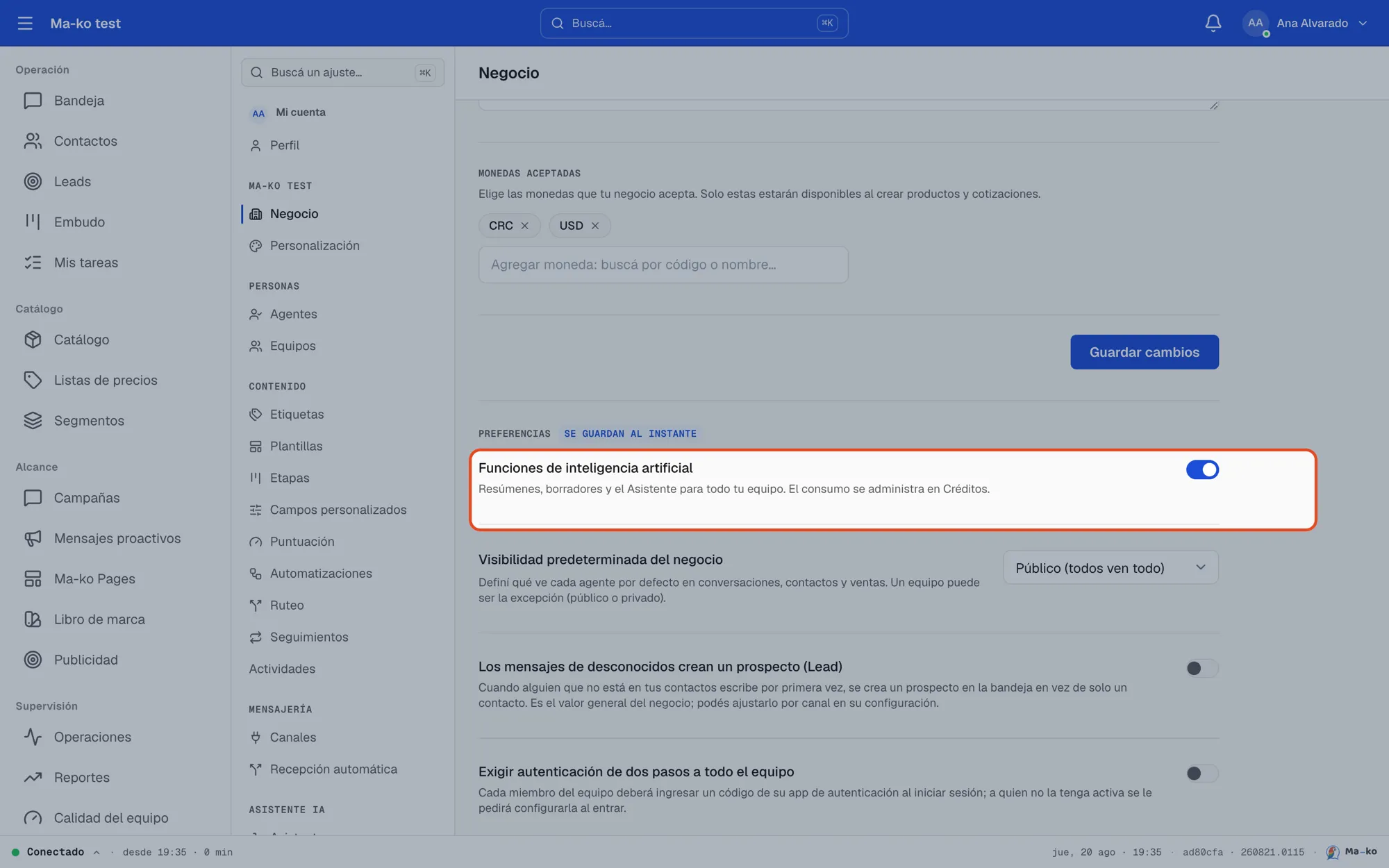
Turn on the business AI. In Settings → Business, enable Artificial intelligence features. This unlocks summaries, drafts and the Assistant; usage is managed in Credits.
-
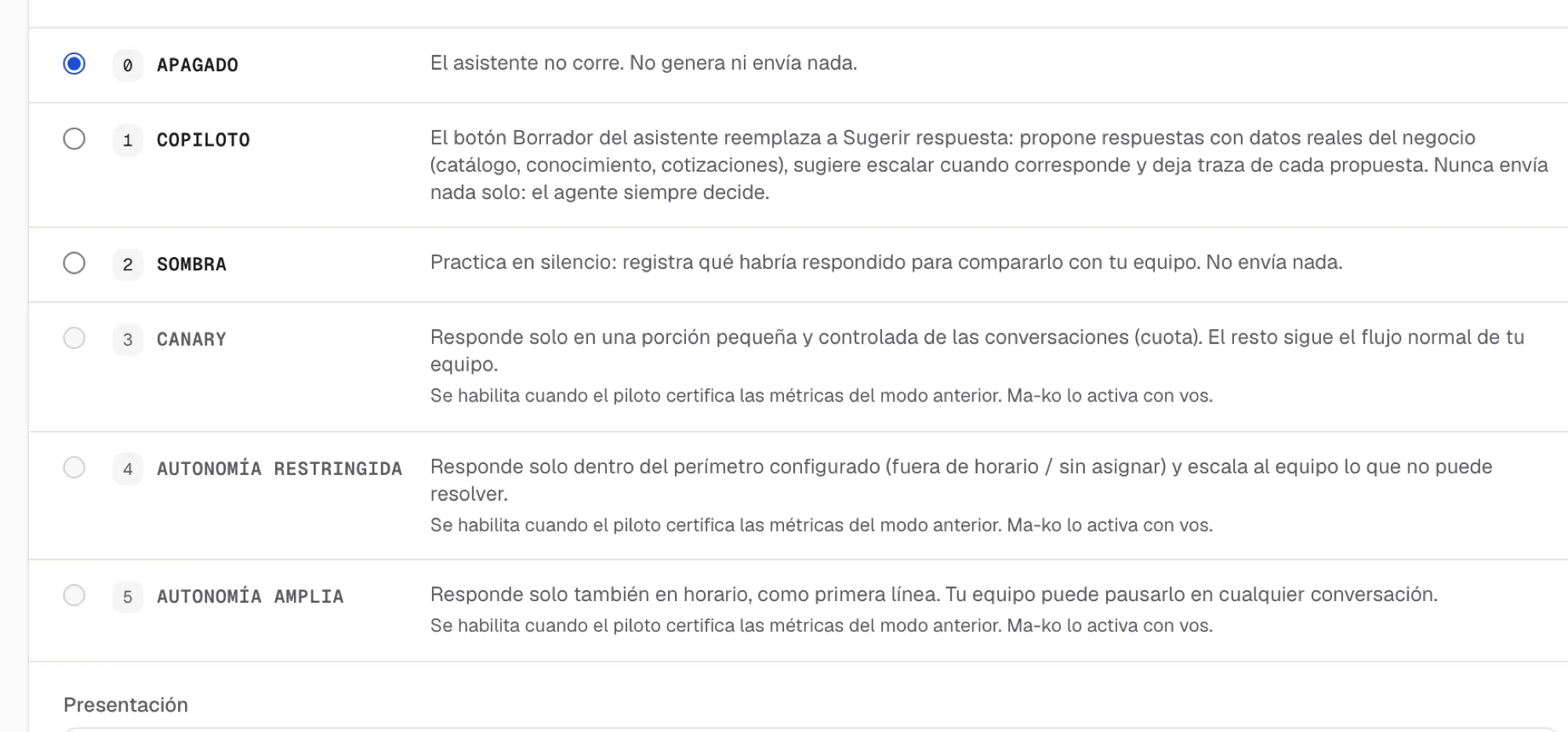
Pick the Assistant’s mode. In Settings → Assistant, set the Assistant mode: to start, Copilot (drafts replies with real data and you decide what gets sent) or Shadow (practices silently, sends nothing). The autonomy steps unlock once the pilot is certified.
-
Set its limits. Choose the perimeter where it can act (after hours, unassigned conversations), which team it escalates to when it can’t solve something, and which topics it handles.
Credits and usage
Section titled “Credits and usage”Everything that uses artificial intelligence draws from the same credit balance of the business, the one you see in Settings → Billing. There are no separate balances per feature.
- Text (summaries, drafts, the Assistant in the inbox and in Posts): metered by what each reply uses.
- Images and Reels the Assistant makes in a post: each image or Reel deducts the real cost of generating it, known when it finishes (a Reel costs more than an image; changing an image is another image). Changing the text, frame or effect of an image does not consume. What each conversation cost shows in Settings → Credits.
- It is deducted when you generate, not when you publish. Downloading an image or re-uploading it does not consume.
- Without balance the Assistant does not generate: top up in Billing and continue.